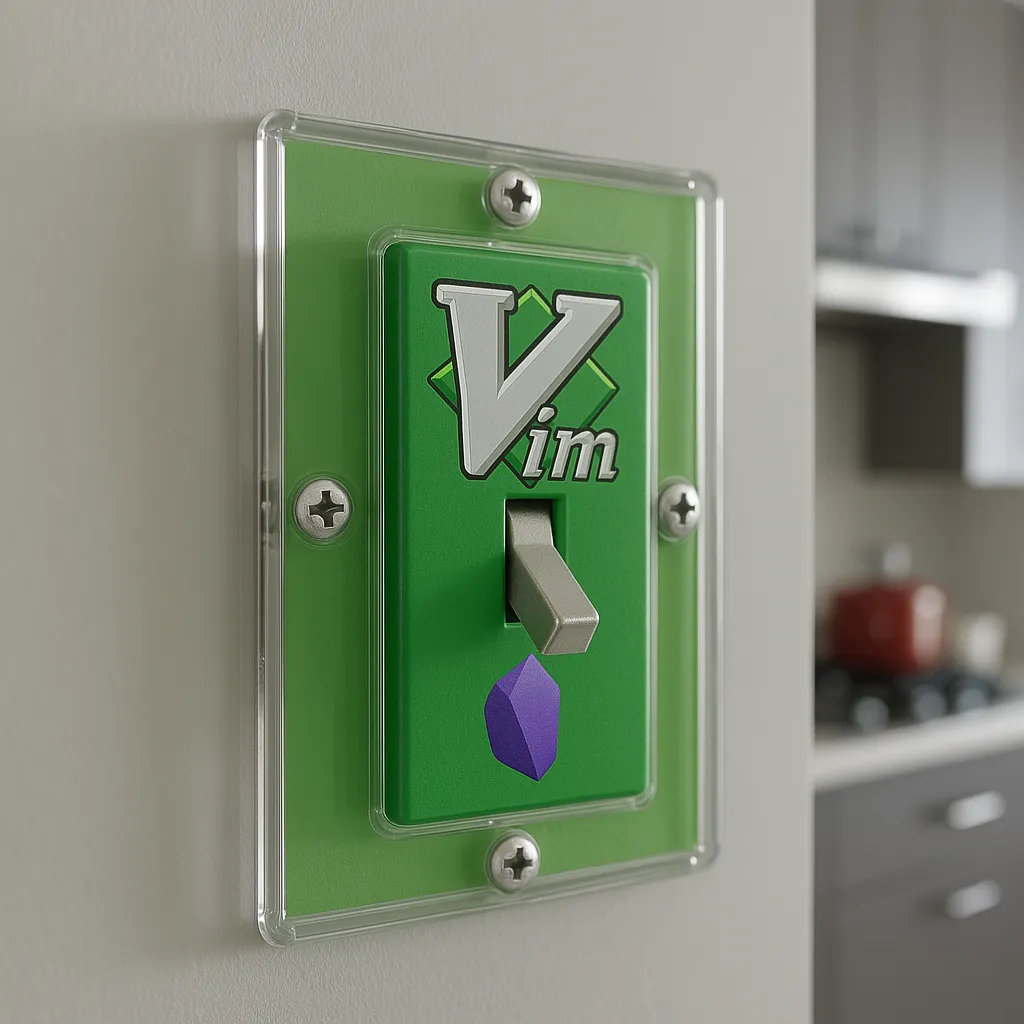
vim-toggle
Obsidian plugin to toggle between vim and normal mode.
Github: link
vim-toggle 
Introduction 
Toggle between vim and normal mode.
Vim Toggle Plugin Obsidian 
Toggle the state of Vim inside of Obsidian, in response to Obsidian Canvas Core Plugin Functionality.
The new Canvas Plugin has prompted me to make a small plugin to toggle the state of use of the vim editor in obsidian.
Wondering what vi/vim is? 
Vim in 100 Seconds - YouTube https://www.youtube.com › watch
Understanding Vi and Vim (Vi IMproved) in 10 Minutes https://www.youtube.com › watch
The Basics 
This plugin is a simple plugin that allows for the toggling of vim mode in Obsidian with a command configurable to a hotkey. You can also turn off or on notifications for the plugin. That pretty much it for basic functionality.
[!important]+ Main Offerings
- Toggle Vim mode
- Optional Notification when toggling
- Community Avaliability
Usage 
Usage for this plugin is done through a settings tab accessible boolean variable and a command to run that toggles and untoggles vim inside of Obsidian. The command can be bound to a hotkey for quicker and more efficient use.
To access the plugin settings, click on the settings cog in the top right corner of Obsidian or use a hotkey Ctrl+,From there, find the Vim Mode setting and toggle it to “On”. This will enable Vim Toggle within the current instance of obsidian.
Basic Usage 
Once installed, you can toggle vim mode on and off with a command. You can configure this command to a hotkey of your choice in the settings. You can also turn off or on notifications for when vim mode is turned on or off.
Normal installation 
To install this plugin normally, you can navigate within the obsidian app to the community plugins to view and install this plugin without even exiting the app! Hopefully you can find some use for it yourself! (You will be able to do this soon).
Manual Installation 
To install this plugin manually, you’ll need to download the source code from the GitHub repository and place it in the plugins folder in your Obsidian data directory. Once that is done, restart Obsidian and you should be good to go.
Use Case 
Writting inside of obsidian canvas mode can be feel alittle tedious using vim mode cause of the constant inserting, this plugin allows for the user to evade these difficulties by switching to regular typing from vim mode temporarily.